
An Internet Gateway (IGW) is a crucial component in your cloud network that enables virtual machines (VMs) or private networks (VPCs) to communicate with the internet. On the VPSie platform, the Internet Gateway provides a secure and scalable route for outgoing and incoming traffic to your cloud infrastructure.
What is an Internet Gateway?
An Internet Gateway is a virtual router that connects your Virtual Private Cloud (VPC) to the public internet. It allows:
- Outbound connections from your instances to the internet
- Inbound connections (if allowed by firewall rules) from the internet to your instances
Use Cases
- Hosting public-facing web applications or APIs
- Providing internet access for VMs with private IPs
- Enabling updates, patch downloads, or access to external services
Create an Internet Gateway
To create an Internet Gateway (IGW) in your VPSie cloud environment, follow these steps:
1. Select the Data Center (DC) : Choose the appropriate data center location where your VPC and instances are deployed.
2. Add Tags (Optional) : Assign meaningful tags to your Internet Gateway for easier identification and management — especially helpful in environments with multiple gateways.
3. Click Create Internet Gateway : Once you’ve selected the data center and added any tags, click the Create Internet Gateway button to initiate the provisioning process.

Manage Internet Gateway
Once your Internet Gateway (IGW) is created, you can manage how it connects to your virtual machines (VPSie instances) within the same data center.
1. Attach or Detach VPSie Instances
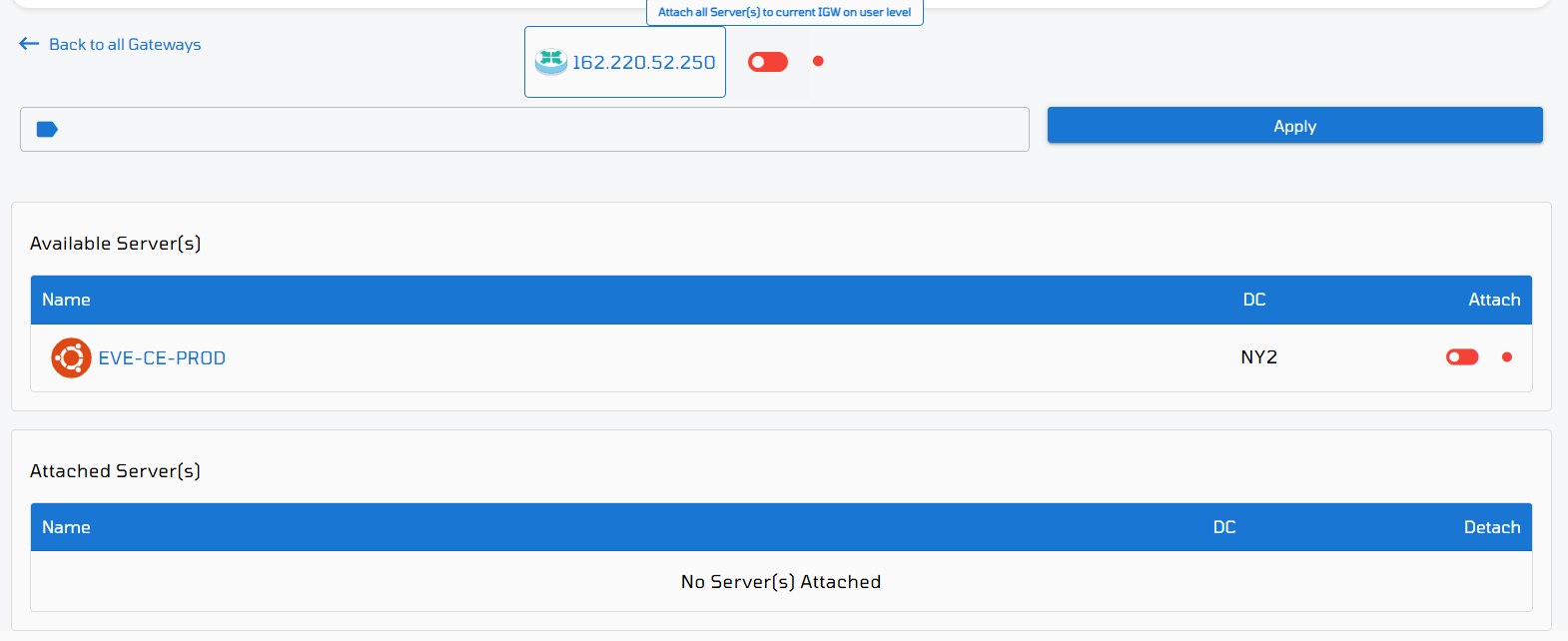
- Navigate to the Internet Gateway section and click on the Gateway IP address to open its settings.
2. View Available VPSie Instances
- Any virtual machines located in the same data center will be listed under Available Server(s).
3. Use the Toggle to Attach or Detach
- To Attach: Click the toggle switch on the right next to the VPSie instance.
- To Detach: Click the toggle switch on the left.
Changes take effect immediately, and your instance will gain or lose internet access based on its connection to the IGW.

Remove Internet Gateway: Press the red trash bin icon under the “Actions” column in the line of your VPSie in “Internet Gateway” section to completely delete the created Internet Gateway.