
The Bucket section in the VPSie control panel allows users to manage their object storage, which functions similarly to services like AWS S3. Buckets are scalable, secure storage containers where users can store files, images, backups, and more.
Creating a New Bucket
1. Go to the VPSie Control Panel.
2. Navigate to the Bucket tab.
3. Select Data Center:
Start by choosing the Data Center location where your bucket will reside. This determines the physical location of your stored data and can improve latency for region-specific applications.

4. File Listing Configuration
Choose your preferred file listing behavior:
- Disable File Listing (Recommended): Prevents directory browsing, enhancing security.
- Enable File Listing: Allows listing all files in the bucket via the browser or API.
Select the one that suits your use case.

5. Customize Bucket Configuration
You can choose to customize your bucket settings:
Bucket Name:
- By default, VPSie will auto-generate a unique name.
- To use a custom name, click “Choose Custom” and enter your preferred bucket name.
Attach to Project:
- Select a project to associate this bucket with.
- This helps organize resources by project or department.
Add Tag:
Use tags to classify buckets based on purpose (e.g., backup, logs, media) for easier filtering and management.

After setting your preferences, click Create Bucket.
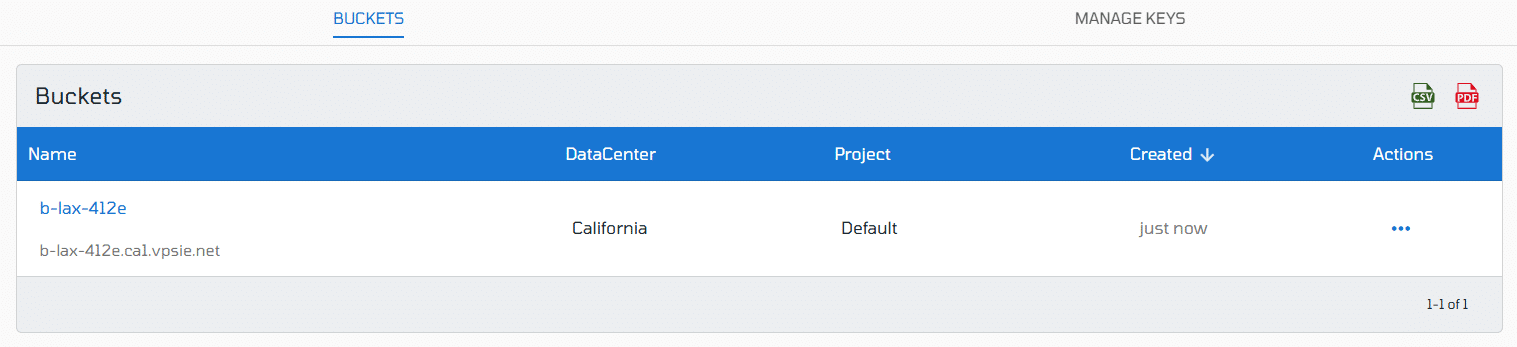
Your new bucket will now be listed under the Bucket section. You can start uploading files, manage permissions, and connect via S3-compatible tools.
Managing Buckets
1. Accessing Bucket Settings
- From the Bucket list, click on the Bucket Name you want to manage.
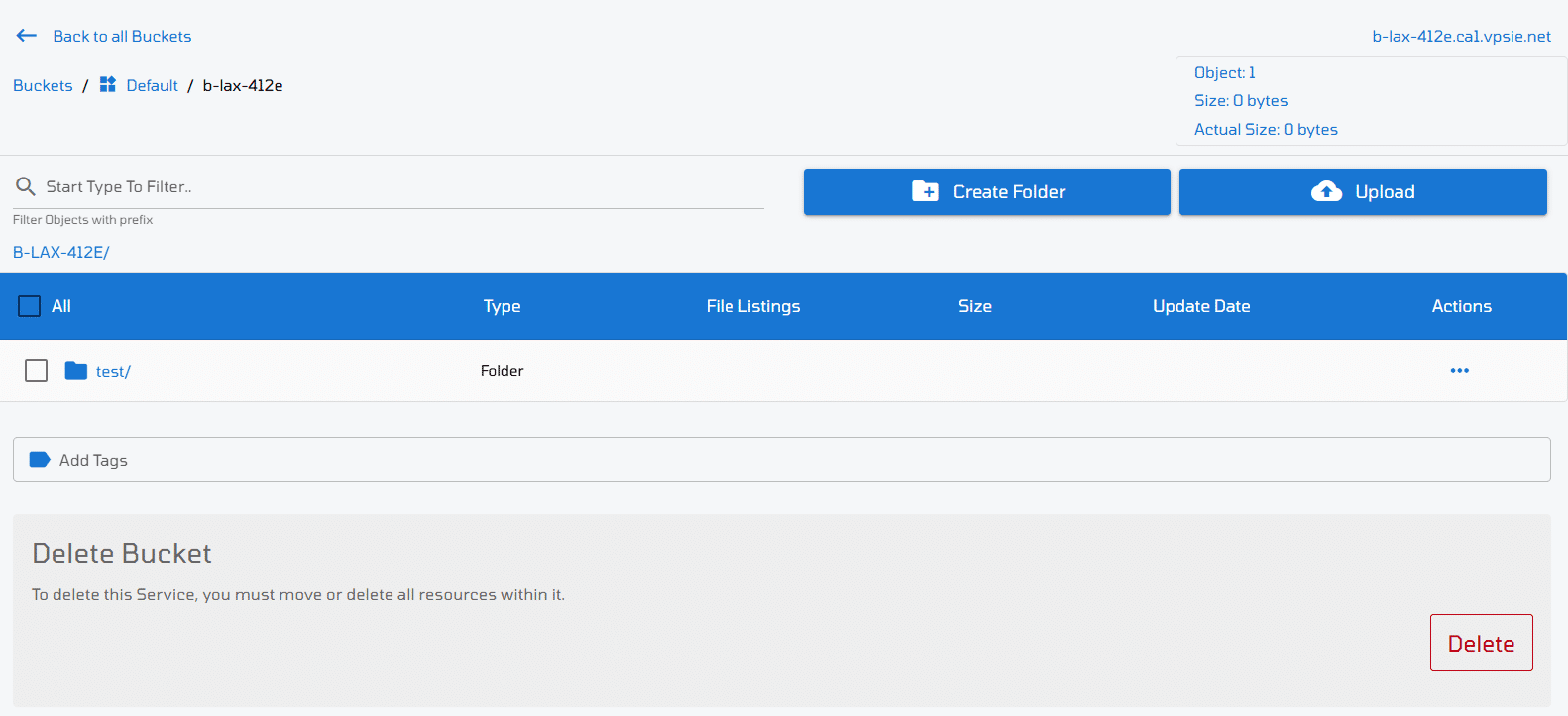
- This will take you to the Bucket Details page where you can view and configure its contents.

2. Available Actions
Within the bucket settings, you’ll find the following options and etc:
Filter:
- Use the filter option to quickly search for specific files or folders within the bucket.
- Great for buckets with large numbers of objects.
Create Folders
- Organize your data by creating folders inside the bucket.
- Helps structure backups, media files, or app data for easier management.
Upload Files
Click the Upload button to add new files from your local system directly into the selected folder or root of the bucket.
Managing Access Keys
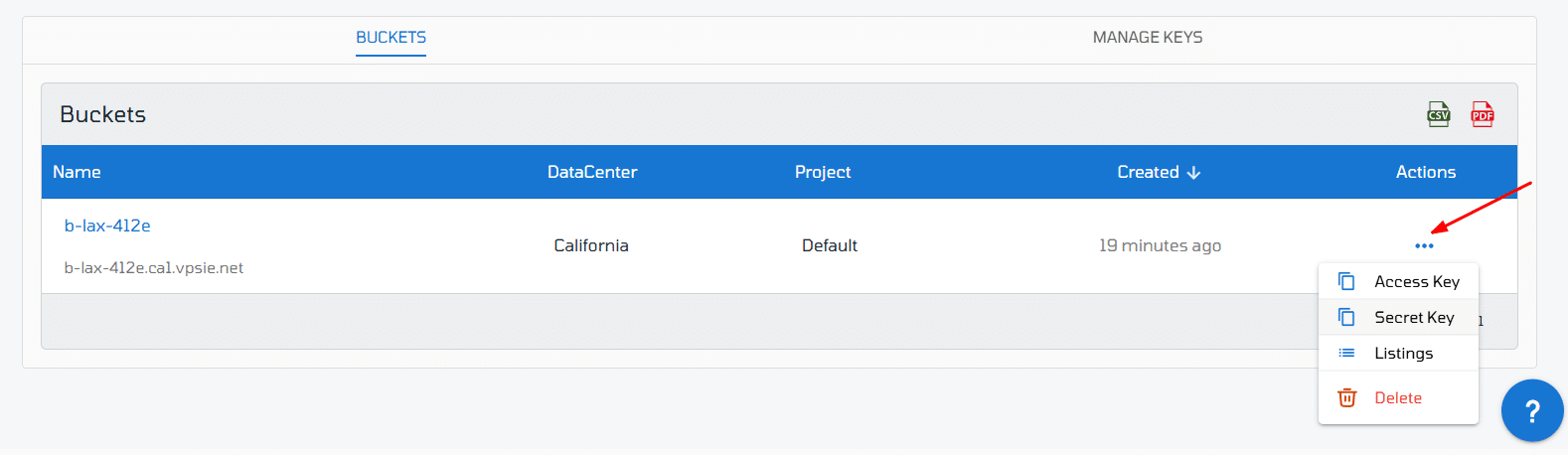
To interact with your bucket using tools like the AWS CLI or SDKs, you’ll need Access Keys and Secret Keys. VPSie makes it easy to manage these securely.
View Existing Keys:
- Navigate to the Bucket list.
- Under the Actions column of your selected bucket, click Manage Keys.
- Here, you can:
- Copy Access Key
- Copy Secret Key
- View and adjust File Listing Settings (such as enabling/disabling public listing).
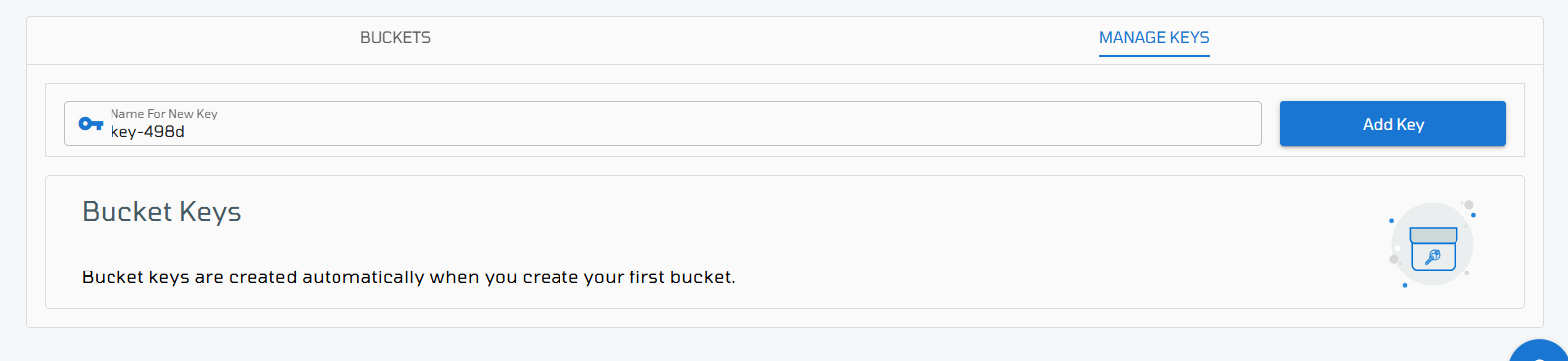
Create a New Key
If you need to generate a new set of keys:
- Go to the Manage Keys section.
- Click on “Add Key”.
- A new Access Key and Secret Key will be generated.
- Copy and securely store these credentials — the secret key is only shown once.
⚠️ Note: Keep your secret key safe. If lost, you will need to delete the existing key and generate a new one.