
Learn how to spin up a high-performance AnythingLLM instance on your VPSie cloud server. AnythingLLM provides a full-featured, multi-user web workspace for local AI, document analysis (RAG), and custom LLM agent workflows.
Get Your VPSie Instance Ready
- Create an Account: Register at the VPSie Client Portal.
- Fund Your Account: Go to Billing in the portal to add funds or set up payment methods.
- Deploy a Server: Create a Linux VM running Ubuntu 24.04 / 26.04 LTS or Debian 12 / 13 with at least 2 vCPUs and 2 GB RAM.
Update System & Install Docker
Log in to your VPSie server via SSH or the built-in VPSie HTML5 Console.
Update system repositories:
sudo apt update && sudo apt upgrade -y
Install prerequisites:
sudo apt install -y ca-certificates curl gnupg lsb-release
Install official Docker Engine & Compose plugin:
curl -fsSL https://get.docker.com -o get-docker.sh
sudo sh get-docker.sh
Configure Folder & Permissions
To prevent container crash loops caused by file permission mismatches, create the host storage directory and initial environment file with write permissions:
Create project and storage directories:
mkdir -p ~/anythingllm/storage
cd ~/anythingllm
Create empty environment file:
touch .env
Grant write permissions for Docker non-root user mapping:
chmod -R 777 storage
chmod 666 .env
Create Docker Compose File & Launch AnythingLLM
Create your compose configuration:
nano docker-compose.yml
Paste the following configuration:
services:
  anythingllm:
    image: mintplexlabs/anythingllm:latest
    container_name: anythingllm
    ports:
      - "3001:3001"
    cap_add:
      - SYS_ADMIN
    volumes:
      - ./storage:/app/server/storage
      - ./.env:/app/server/.env
    environment:
      - STORAGE_DIR=/app/server/storage
    extra_hosts:
      - "host.docker.internal:host-gateway"
    restart: unless-stopped
Launch AnythingLLM by starting the container:
docker compose up -d
Verify that the container status shows Up (not Restarting):
docker compose ps
Completing the AnythingLLM Web Setup Wizard
Once your AnythingLLM Docker container is active, you can complete the initial configuration directly in your web browser.
1. Open your web browser and navigate to http://<YOUR_VPSie_IP>:3001.
2. Click the white Get Started button on the welcome screen.

Install Ollama locally
Run the official installer script Ollama installation:
curl -fsSL https://ollama.com/install.sh | sh
This installs Ollama as a systemd service and starts it automatically.
Verify the service is active:
systemctl status ollama
Pull a chat model and an embedding model:
AnythingLLM needs two models: one for chat, and one for embeddings (used for document Q&A/RAG). Skipping the embedding model causes document uploads to fail silently.
ollama pull llama3.2
ollama pull nomic-embed-text
Confirm both models downloaded correctly:
ollama list
Configure Ollama to accept connections from Docker
By default, Ollama binds only to 127.0.0.1, which means it only accepts connections from the local machine, not from other containers, including your AnythingLLM Docker container. You need to change this to listen on all interfaces (0.0.0.0).
Open the systemd override file:
sudo systemctl edit ollama.service
This opens nano (or your default editor) on a drop-in override file. Everything above the line ### Edits below this comment will be discarded is where your changes go.
Add the environment variable, At the top of the editable section, add:
[Service]
Environment="OLLAMA_HOST=0.0.0.0:11434"
Save the file:
1. Press Ctrl+O
2. Press Enter to confirm the filename
3. Press Ctrl+X to exit
Now continue with verification:
cat /etc/systemd/system/ollama.service.d/override.conf
Then reload and restart:
sudo systemctl daemon-reload
sudo systemctl restart ollama
Then confirm it’s actually listening on all interfaces:
sudo ss -tlnp | grep 11434
You want to see 0.0.0.0:11434 in the output, not 127.0.0.1:11434.
Once that checks out, test from inside the AnythingLLM container:
sudo docker exec -it anythingllm curl http://host.docker.internal:11434
Now go back to the LLM Preference screen on the browser
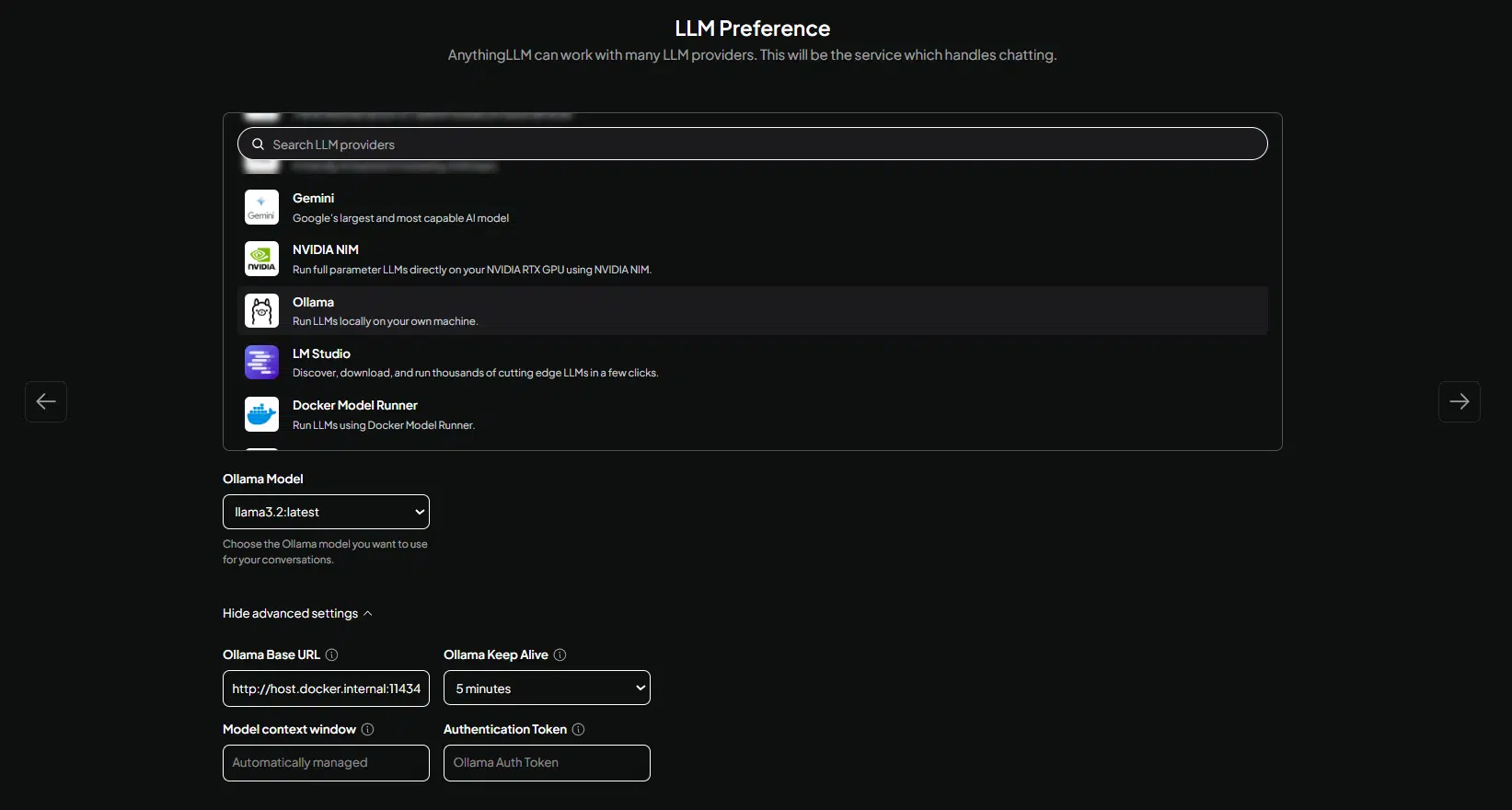
- Select Ollama as LLM provider.
- In Ollama Base URL, replace http://127.0.0.1:11434 with: http://host.docker.internal:11434
- On the Ollama model click the dropdown and select llama3.2:latest, do not use nomic-embed-text:latest.
- Click Next.
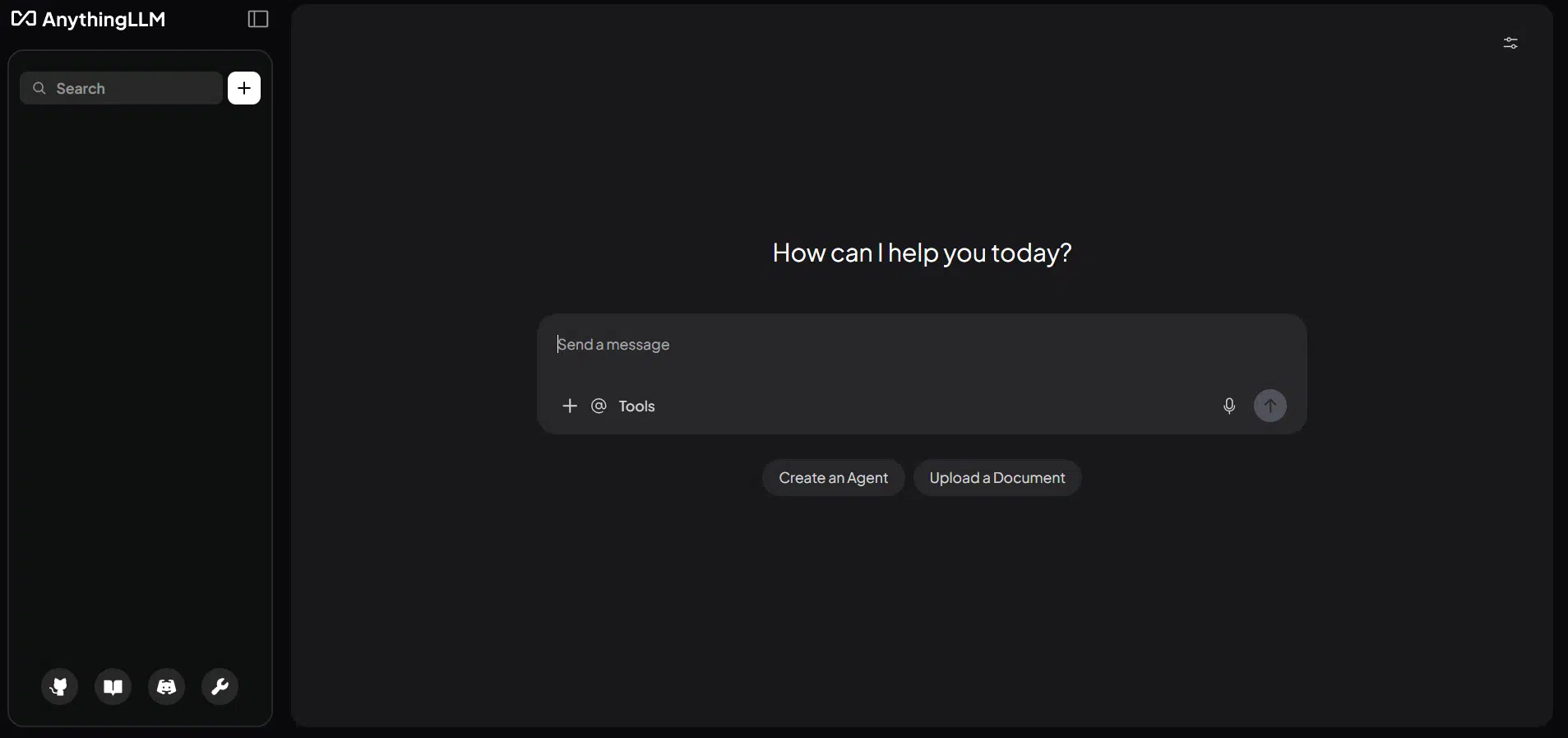
If you still have problems with identifying AI providers:
Go to Settings → AI Providers → LLM
There, re-enter:
Provider: Ollama
Base URL: http://host.docker.internal:11434
Chat Model: llama3.2:latest
Click Save, and wait for the success confirmation (a toast notification, usually bottom-right) before navigating away.